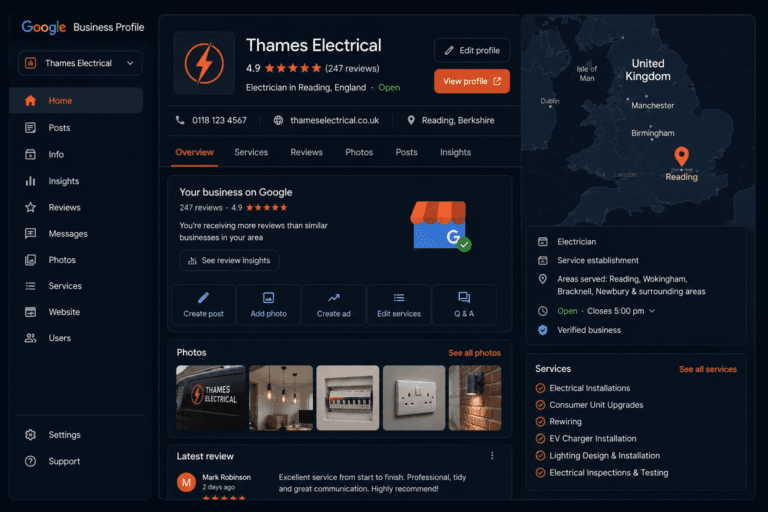
Google Business Profile Q&A: How to Use It Before a Competitor Does
The Google Business Profile Q&A section is one of the most overlooked features on a tradesperson’s listing, and that’s a problem, because anyone can post a question on your profile and anyone can answer it. If you’re not managing this section, a competitor, a disgruntled ex-customer, or simply a well-meaning stranger could be shaping what potential customers read before they decide whether to call you.
This guide explains how the Q&A feature works, why it matters, and how to use it properly.
TL;DR:
Google’s Q&A section lets the public post questions on your listing. Anyone, not just you, can answer them. Seed it with your own frequently asked questions, answer every new question promptly, and monitor it regularly. Five minutes of setup now prevents a lot of headaches later.
Contents
- What is the Google Business Profile Q&A section?
- Who can ask and answer questions?
- Why you should seed your own Q&A
- How to add questions and answers to your listing
- How to monitor and manage Q&A
- What to do if a question gets a bad answer
- FAQ
What Is the Google Business Profile Q&A Section?
The Q&A section appears on your Google Business Profile in Maps and in local search results. It shows questions that have been posted about your business, along with the answers that have been given.
It’s publicly visible. Anyone viewing your listing can see the questions and answers, so the content there directly influences whether someone decides to contact you.
Unlike your business description or your posts, which you control entirely, the Q&A section is open. Google built it as a community feature, similar to how anyone can suggest an edit to your listing details.
Who Can Ask and Answer Questions?
Anyone with a Google account can post a question on your listing. Anyone can also post an answer, including people who have nothing to do with your business.
That last part is worth sitting with. If someone asks “Do you cover emergency call-outs?” and a random Google user answers “I don’t think so”, that incorrect answer will sit on your listing until someone corrects it. You may never even know it happened unless you’re monitoring the section.
Google does notify business owners when a new question is posted, but only if you have notifications turned on in your Google Business Profile settings. And even with notifications on, answers from the public can appear without any alert to you at all.
Why You Should Seed Your Own Q&A
Rather than waiting for customers to ask questions and hoping the answers are accurate, the smarter approach is to seed the Q&A section yourself.
Log in to your Google account, go to your listing, and post the questions you’re most commonly asked, then answer them yourself. Questions like:
- Do you cover emergency call-outs?
- Are you Gas Safe registered?
- Do you offer free quotes?
- What areas do you cover?
- Do you work on weekends?
These are the things customers want to know before they call. By answering them yourself in the Q&A section, you’re controlling the message rather than leaving it to chance.
There’s a secondary benefit. Seeded Q&As act as a form of structured content on your profile, and Google sometimes surfaces Q&A answers directly in search results as a featured snippet-style response. Getting your answers in early means they’re the authoritative version.
For the broader context of how profile completeness affects your ranking, see how to optimise your Google Business Profile to rank in the Local Pack.
How to Add Questions and Answers to Your Listing
On desktop:
- Go to google.com/maps and search for your business.
- Click on your listing to open it.
- Scroll down to the Questions and answers section.
- Click Ask a question and type the question you want to add.
- Submit it, then find it in the list and click Answer to post your reply.
You need to submit the question from your Google account, then switch to your business account to answer it, or answer from the same account if it’s linked. The question will show as coming from your personal account name, not your business name, which is slightly awkward but how the system works.
On mobile, the same flow works through the Google Maps app.
How to Monitor and Manage Q&A
Set up notifications in your Google Business Profile dashboard so you’re alerted whenever a new question is posted. Go to Settings and check that email notifications for Q&A are switched on.
Even with notifications on, check your Q&A section manually once a month as part of your regular profile review. Look for:
- New questions that haven’t been answered yet
- Existing questions where someone else has posted an answer that’s inaccurate or unhelpful
- Questions that have been answered by you but could be improved
Answering quickly matters. A question that sits unanswered for two weeks looks like an abandoned profile, especially if you’ve been active in other areas like adding photos and posting updates. Customers notice the gaps.
What to Do If a Question Gets a Bad Answer
If a member of the public has posted an inaccurate or unhelpful answer on your listing, you have a couple of options.
First, post your own correct answer on the same question. Your response will appear alongside theirs, and as the business owner your answer carries more authority. You can also upvote your own answer using the thumbs-up icon, which pushes it to the top of the answer list.
Second, you can report an answer to Google for removal if it violates Google’s content policies. This covers things like spam, fake information, or off-topic content. To report, click the flag or three-dot menu next to the answer and follow the reporting flow. Google reviews reported content and removes it if it breaches guidelines, though this can take time.
What you can’t do is delete questions or answers just because you dislike them. Google’s policy is that the Q&A section is a public forum, so content removal requires a policy reason, not just a preference.
FAQ
Can anyone answer questions on my Google Business Profile?
Yes. Any Google user can post an answer to a question on your listing, not just you. This is why monitoring the section regularly and answering promptly is important. If you don’t answer, someone else might, and their answer may be wrong.
How do I manage the Q&A on my listing?
Log in to your Google Business Profile, go to your listing on Google Maps, and scroll to the Q&A section. You can post questions yourself, answer existing questions, upvote your own answers to move them to the top, and report inaccurate answers that violate Google’s policies. Set up email notifications in your profile settings to be alerted when new questions appear.
Should I add my own questions to my GBP Q&A?
Yes. Seeding the Q&A with the questions you’re most commonly asked, and answering them clearly, means you control the information rather than leaving it to chance. It also gives customers the answers they’re looking for before they need to call.
Can I delete questions from my GBP?
No, not directly. You can report a question to Google for removal if it breaks their content policies, such as spam or fake information, but you cannot delete questions simply because you’d rather they weren’t there. Focus on making sure your answers are clear and accurate instead.
Does the Q&A section affect my Google ranking?
Not directly in the same way that reviews or photos do. However, a well-maintained Q&A section contributes to the overall completeness and activity signals on your profile, which feed into how Google assesses your listing. It also keeps potential customers on your listing longer, which is a useful indirect signal.
The Bottom Line
The Q&A section takes less than half an hour to set up properly. Post the five or six questions customers ask most often, answer them clearly, switch on notifications, and check back once a month. That’s the whole system.
The alternative is leaving a public forum on your business listing that you’re not watching. Most of your competitors are doing exactly that. Which is exactly why it’s worth doing differently.
Want to see everything your listing looks like to customers right now? Get your free Local Visibility Report at neonlobster.ai/local-visibility-report/ and I’ll show you what they see when they search for your trade in your area.
From Gigi, The Neon Lobster
Want to know exactly where you stand in local search?
We’ll scan your Google Business Profile, your reviews, and your map pack visibility. Then we’ll send you a personalised Local Visibility Report showing what’s working, what’s missing, and what it’s quietly costing you each month. It’s free, it takes two minutes to fill in, and you’ll have your report the same day.
Get My Free Local Visibility Report →No sales call. No obligation. Just honest numbers about where you stand online.