How to Track Calls and Enquiries from Your Google Business Profile
Knowing how many calls your Google Business Profile generates is the difference between guessing whether your listing is working and knowing for certain. Most tradespeople have no idea how many leads their profile produces each month. This guide shows you exactly where to find that data and how to use it to make better decisions.
TL;DR:
Google Business Profile Insights shows how many calls, website clicks, and direction requests your listing generated in the last six months. For more detail on individual calls, use Google’s call history feature. For a complete picture, add UTM tracking to your website URL and connect Google Analytics.
Contents
- What data does Google Business Profile actually track?
- How to access your GBP performance data
- Understanding each metric
- How to track individual calls with call history
- How to track website visitors from your GBP
- What numbers should you be aiming for?
- FAQ
What Data Does Google Business Profile Actually Track?
Google records the actions customers take directly on your listing. Every time someone clicks to call you, clicks your website link, asks for directions, or views your photos, Google logs it.
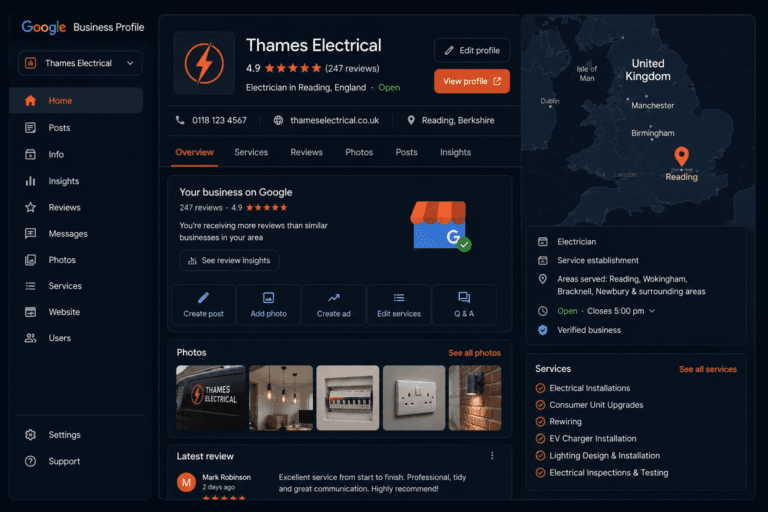
This data sits inside your Google Business Profile dashboard under Performance (or Insights on older versions). It’s free, automatically collected, and goes back up to six months.
The metrics Google tracks include:
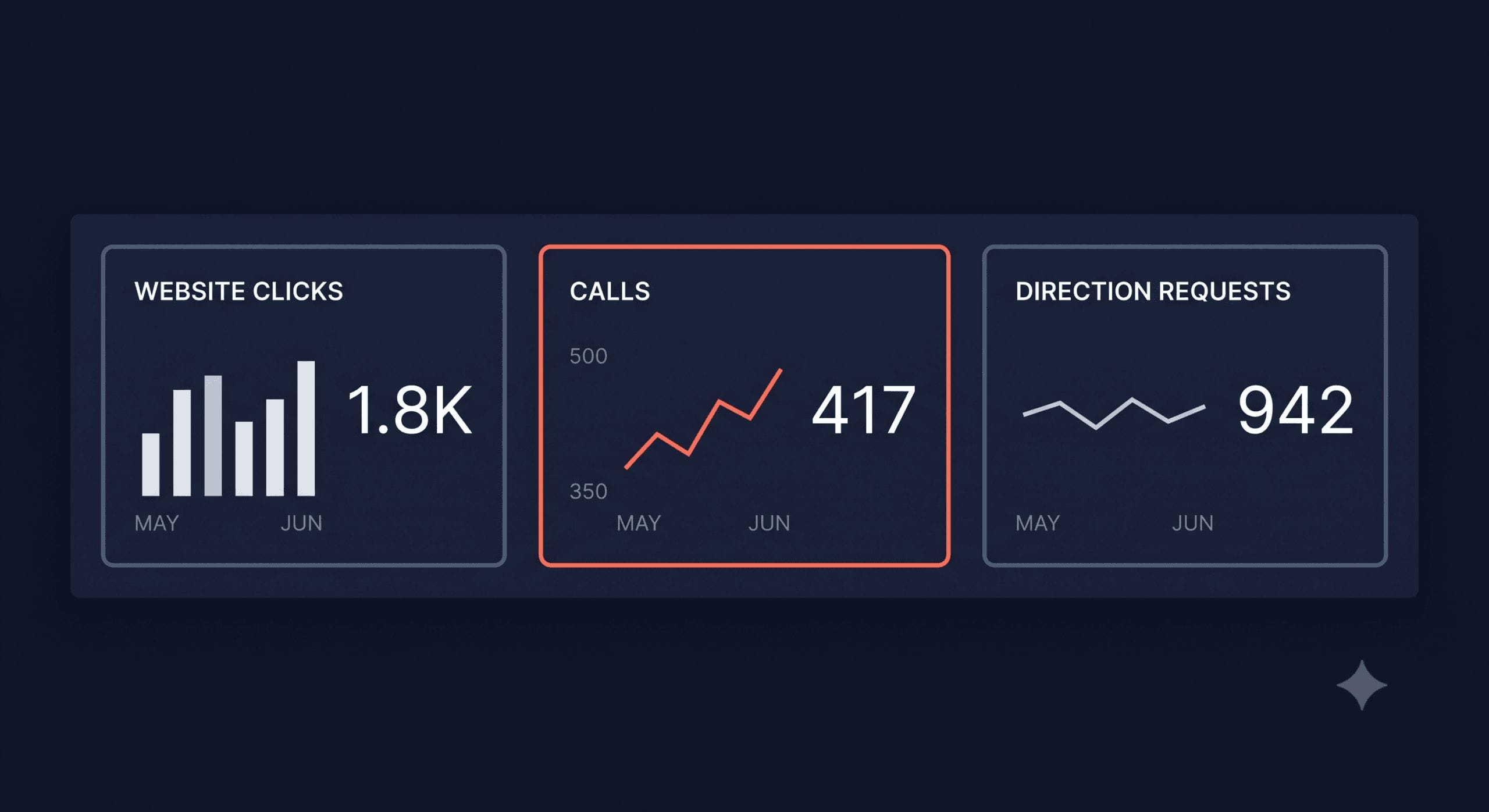
Calls. The number of times someone clicked the phone number button on your listing. This only counts clicks through Google, not calls that came from people who found your number elsewhere.
Website clicks. The number of times someone clicked the link to your website from your profile.
Direction requests. The number of times someone asked for directions to your location from your listing.
Profile views. How many times your listing was viewed in Search and Maps.
Photo views. How many times your photos were viewed.
Search queries. The search terms people used when your listing appeared.
How to Access Your GBP Performance Data
On desktop, go to business.google.com, open your profile, and click Performance in the left-hand menu.
On mobile, open the Google Maps app, tap your profile, and look for Promote or Performance depending on your app version.
The dashboard shows a date range selector at the top. You can view data across different time periods and compare months to spot trends.
If your profile is relatively new, there may be limited data available. Most profiles need at least 60 to 90 days of history before the numbers are meaningful enough to act on.
Understanding Each Metric
Calls are your most important number. A call from Google Maps is a genuine lead: someone searched for your trade, found your listing, decided you looked credible, and called. Track this month by month. If it’s going up, your profile is improving. If it drops, something has changed.
Website clicks tell you about intent. Someone clicking your website from your GBP is usually doing more research before they decide. This number matters less than calls for most tradespeople, but it’s worth watching because a significant drop often signals a change to your listing, a broken website link, or a competitor improving their profile.
Direction requests are useful context. For service area businesses, direction requests tend to be low because customers don’t visit your location. If you’re a storefront or have a yard customers visit, this metric tells you how many people are finding their way to you via Google.
Profile views vs. calls is the ratio to watch. If you have high views but low calls, your listing is appearing in searches but not convincing people to contact you. That usually means your photos need improving, your reviews are weak, or your description isn’t doing its job. For a full picture of what affects your ranking and conversion rate, see how to optimise your Google Business Profile to rank in the Local Pack.
How to Track Individual Calls with Call History
Google offers a call history feature that records individual calls made through your GBP, showing you the date, time, and whether the call was answered or missed.
To enable it, go to your Google Business Profile dashboard and look for Calls in the left-hand menu. If the feature is available for your account, you’ll see a toggle to turn it on. Once enabled, calls made through your listing are logged automatically.
Call history is particularly useful for spotting missed calls. If your listing is generating 20 calls a month and 8 of them are going unanswered, that’s a direct revenue problem you might not have known about. It also lets you see which days and times you’re getting the most calls, so you can make sure you’re available during your busiest periods.
Note that call history is only available in some regions and account types. If you don’t see the option in your dashboard, it may not be available for your profile yet.
How to Track Website Visitors from Your GBP
GBP Insights tells you how many people clicked your website link, but it doesn’t tell you what they did after they arrived. To get that detail, you need to add a UTM parameter to the website URL in your Google Business Profile.
A UTM parameter is a tag you add to the end of a URL that tells Google Analytics where a visitor came from. Here’s an example:
Add this URL to the website field in your Google Business Profile instead of your plain homepage URL. Then in Google Analytics, you’ll be able to see exactly how many visitors came from your GBP, what pages they visited, and how long they stayed.
This takes five minutes to set up and gives you a clear picture of whether GBP visitors are reading your services page, checking your prices, or bouncing immediately.
For tradespeople using GBP posts to drive traffic, UTM parameters let you track which posts actually send visitors to your site. See how to use Google Business Profile posts effectively for more on using posts as a traffic and lead source.
What Numbers Should You Be Aiming For?
There are no universal benchmarks, because call volumes vary enormously by trade, location, and competition. A sole-trader plumber in a small market town will see very different numbers from an electrical contractor in Leeds.
What matters is the trend, not the absolute number. Set a baseline in your first month of tracking, then monitor month by month. Month-on-month growth in calls and profile views means your optimisation efforts are compounding. Flat or declining numbers are a signal to act.
As a rough guide, a well-optimised profile for a trades business in a mid-sized UK town might generate anywhere from 15 to 60 calls per month from GBP alone, depending on the trade, the competition, and how active the profile is. If you’re generating fewer than ten calls a month from a profile that’s been live for six months or more, there’s almost certainly room to improve.
FAQ
How do I see how many calls I get from Google?
Log in to business.google.com, go to your profile, and click Performance in the left-hand menu. The calls metric shows how many times someone clicked the phone number on your listing within the selected date range.
Does Google Business Profile show call history?
Yes, if the call history feature is enabled for your account. Go to the Calls section of your Google Business Profile dashboard. If the feature is available, you can switch it on to see individual calls, including date, time, and whether each call was answered or missed.
How do I measure GBP performance?
Use the Performance section in your Google Business Profile dashboard to track calls, website clicks, direction requests, and profile views. For deeper website data, add UTM parameters to your website URL in your GBP and connect Google Analytics. Review the numbers monthly and track the trend over time.
What is a good number of calls from Google Business Profile?
It depends on your trade, location, and competition. What matters more than a specific number is the trend. Set a baseline and track month by month. A well-optimised profile for a trades business in a mid-sized UK town might generate 15 to 60 calls per month, but your local competition is the most useful comparison point.
Why are my GBP calls dropping?
A drop in calls usually means one of a few things: a competitor has improved their profile and is ranking above you, a change to your listing has reduced its visibility, your reviews have declined relative to competitors, or Google has made an algorithm change. Check your profile for any unintended edits, review your ranking position for your key searches, and compare your review count against the businesses now appearing above you.
The Bottom Line
You can’t improve what you don’t measure. Checking your GBP performance takes five minutes a month and tells you whether your listing is generating real leads or just sitting there. Set up call history if it’s available, add UTM tracking to your website URL, and review the numbers once a month.
The tradespeople who consistently win local searches are the ones who treat their GBP like a business tool, not a set-and-forget directory listing.
Want to see how your listing compares to the businesses ranking above you right now? Get your free Local Visibility Report at neonlobster.ai/local-visibility-report/ and I’ll show you exactly where the gaps are.
From Gigi, The Neon Lobster
Want to know exactly where you stand in local search?
We’ll scan your Google Business Profile, your reviews, and your map pack visibility. Then we’ll send you a personalised Local Visibility Report showing what’s working, what’s missing, and what it’s quietly costing you each month. It’s free, it takes two minutes to fill in, and you’ll have your report the same day.
Get My Free Local Visibility Report →No sales call. No obligation. Just honest numbers about where you stand online.