How to Automate Google Review Requests After Every Job
How to automate google review requests tradespeople send without having to remember every single time comes down to one thing: triggering the ask from something that already happens on every job, like marking it complete or sending the invoice.
Asking manually works, but it depends on you remembering to do it, every time, on top of everything else you’re juggling. Automation removes that dependency. Once it’s set up, every customer gets asked, whether you’re mid-job on the other side of town or it’s gone six on a Friday.
TL;DR
Automating review requests means connecting the moment a job finishes to an automatic text or email asking for a Google review, with no manual step in between. The fastest response rates come from messages sent within an hour or two of the job. You can set this up with simple tools that connect your job management system, your phone, and your Google review link.
Contents
- Why automate instead of asking manually
- What you need to automate review requests
- How to set up an automated review request, step by step
- Timing: when automated requests work best
- Tools that can send automated review requests
- What automation can’t do
- FAQ
Why Automate Instead of Asking Manually
Asking manually is the right place to start, and if you haven’t read it yet, this guide to asking for Google reviews without feeling pushy covers the wording and timing that works. The problem isn’t the method, it’s consistency. On a quiet week you’ll remember every time. On a busy week, asking is the first thing that gets dropped.
Automation fixes the consistency problem, not the wording problem. It sends the same message, at the same reliable moment, to every customer, without relying on you remembering at the end of a long day.
According to research from review platform Podium, review requests sent within an hour of a job get around five times the response rate of ones sent a day later, and text messages get read within minutes for the vast majority of recipients. Manual asking almost always happens later than that ideal window. Automation can hit it every time.
What You Need to Automate Review Requests
Before setting anything up, you need three things in place:
- A trigger. Something that reliably marks the moment a job is finished, such as invoicing software, a job management app, or even a simple form you fill in on your phone.
- A direct Google review link. Get this from your Google Business Profile dashboard under “Ask for reviews” or “Get more reviews.” This is the link every automated message needs to include.
- A way to send the message. This is usually SMS, since text messages get read faster than email, but email works as a backup for customers without a mobile number on file.
If you’re already using job management software like Tradify, Fergus, or a simple invoicing tool, there’s a good chance it already has an automation or “trigger” feature you can connect to a review request, even if you’ve never used it.
How to Set Up an Automated Review Request, Step by Step
- Choose your trigger event. Most tradespeople use “invoice marked as paid” or “job marked complete” as the trigger, since both happen naturally at the end of every job without extra admin.
- Connect it to a messaging tool. Depending on what you’re already using, this might be a built-in feature of your job management software, or a connector tool like Zapier or n8n that links two systems together.
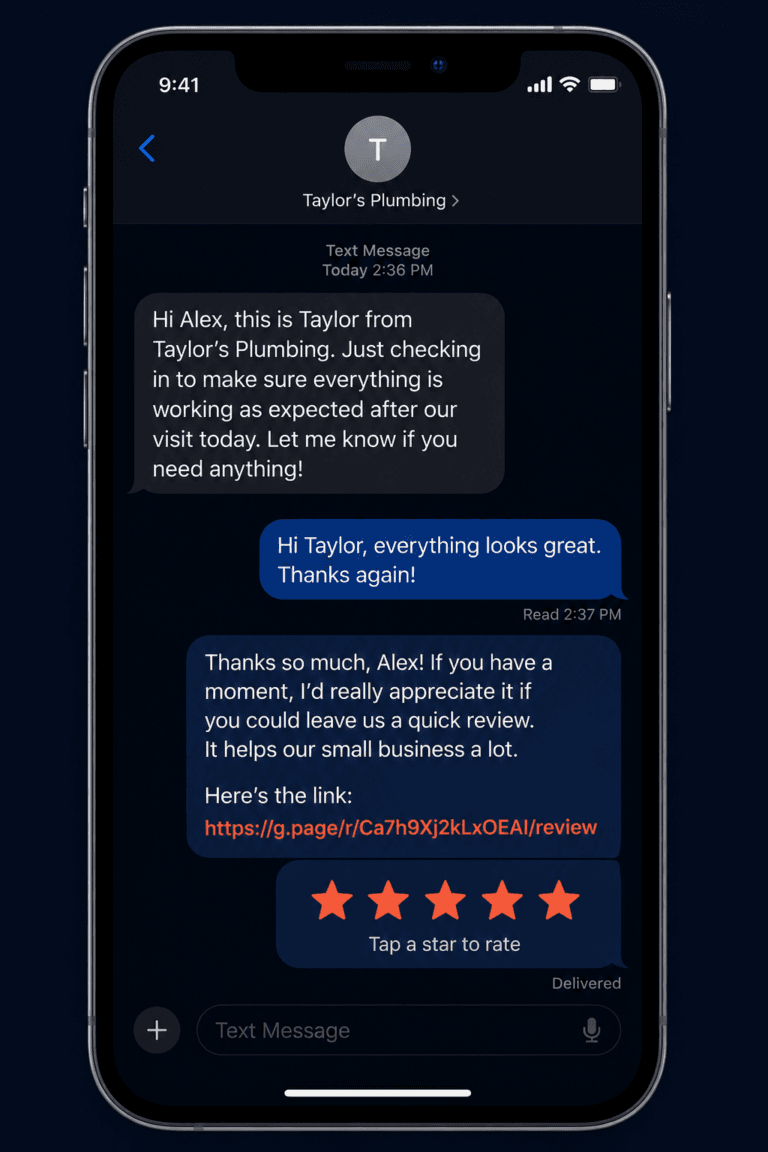
- Write the message once. Keep it short: a thank you, a mention of the job, and the direct review link. You only need to write this once, the automation reuses it for every customer.
- Set the delay. One to two hours after the trigger event is the sweet spot, long enough that the customer’s had a moment to look at the finished work, short enough that it’s still fresh.
- Test it on yourself first. Run the automation through with your own number before it goes live on real customers, so you can see exactly what they’ll receive.
- Add a single automatic follow-up. A second message three to four days later, only if no review has appeared, catches the customers who meant to leave one and forgot.
Timing: When Automated Requests Work Best
The same timing rules that apply to manual requests apply here, automation just makes them consistent. Sending within one to two hours of the job finishing captures the customer while the result is still fresh and they’re still in a positive frame of mind about the work.
For evening jobs or emergency call-outs, a request sent late at night can feel intrusive. Most automation tools let you set a “send window,” for example only between 8am and 8pm, so the message queues up and sends at a sensible hour even if the job itself finished at 11pm.
For bigger jobs, such as a full bathroom or kitchen install, consider a second automated trigger a week or two later, once the customer has properly lived with the result rather than just seen it finished.
Tools That Can Send Automated Review Requests
| Tool Type | Examples | Best For |
|---|---|---|
| Dedicated review automation software | Podium, LeadSnap-style platforms | Businesses that want a purpose-built system with reporting |
| General automation connectors | Zapier, n8n, Make | Connecting existing job management or invoicing software to SMS or email |
| Built-in job management features | Tradify, Fergus, ServiceM8 | Businesses already using one of these platforms for scheduling and invoicing |
| Simple SMS scheduling apps | Basic text scheduling tools | Very small operations without job management software yet |
There’s no single right choice here. The best tool is whichever one connects to the job management or invoicing system you’re already using, since that’s what removes the manual step.
What Automation Can’t Do
Automation handles consistency, it doesn’t handle judgement. It can’t tell whether a customer had a genuinely bad experience and needs a phone call before anything else. If a job’s gone wrong, pause the automated request for that customer and deal with the issue directly first.
Automation also can’t write a personal, specific message the way you can in person. It’s a trade-off: you lose a bit of the personal touch, but you gain the certainty that every single customer gets asked, which is worth more over a year of jobs than any one perfectly worded message.
Finally, remember that automating who gets asked doesn’t change Google’s rules about who you’re allowed to ask. Every customer still needs to get the same message, with nothing offered in exchange for a review. Automating a request that only fires for customers you’ve manually flagged as “happy” is review gating, and it breaks Google’s policy whether a human or a workflow sends it.
FAQ
How do I automate review requests?
Connect a trigger, such as a job being marked complete or an invoice being paid, to an automatic text or email containing your direct Google review link. Most job management software has a built-in automation feature, or you can use a connector tool like Zapier or n8n to link two systems together.
Can I send automated SMS for reviews?
Yes. SMS is generally the most effective channel for automated review requests because text messages are read quickly, usually within a few minutes. Make sure you have customers’ mobile numbers on file and that your message includes a direct link to your Google review page.
What tools send review requests automatically?
Options range from dedicated review management platforms to general automation connectors like Zapier, Make, or n8n, to features built directly into job management software such as Tradify, Fergus, or ServiceM8. The right choice depends on what system you’re already using to manage jobs and invoices.
Is it OK to automate review requests?
Yes, as long as every customer gets asked the same way, with nothing offered in exchange for a review. Automating the timing and delivery is fine. Automating who gets asked based on how happy you think they were is not, since that breaks Google’s review policy.
How long after a job should an automated review request send?
One to two hours after the job is marked complete works best for most trade jobs. This keeps the request timely without asking before the customer has had a chance to see the finished work.
Do I still need to ask for reviews manually if I automate them?
Not routinely, but it’s still worth asking in person occasionally, especially after a job you’re particularly proud of. Automation handles the consistent, everyday asking. A personal ask on top of that never hurts.
The Bottom Line
Automating how you automate google review requests tradespeople send isn’t about replacing the personal touch, it’s about making sure the ask happens every time, not just on the weeks you remember. Set the trigger once, write the message once, and it keeps working in the background on every job from then on.
If you want to see how your current review count and rating compare to the businesses ranking above you, I offer a free Local Visibility Report that shows you exactly where the gap is.
Ready to see how visible your business actually is?
Get your free Local Visibility Report at neonlobster.ai/local-visibility-report/ and I’ll show you where you stand and what it would take to improve it.
From Gigi, The Neon Lobster
Want to know exactly where you stand in local search?
We’ll scan your Google Business Profile, your reviews, and your map pack visibility. Then we’ll send you a personalised Local Visibility Report showing what’s working, what’s missing, and what it’s quietly costing you each month. It’s free, it takes two minutes to fill in, and you’ll have your report the same day.
Get My Free Local Visibility Report →No sales call. No obligation. Just honest numbers about where you stand online.